SYNTHEYES
PRODUCTION GRADE MATCHMOVING
DOWNLOAD A TRIAL
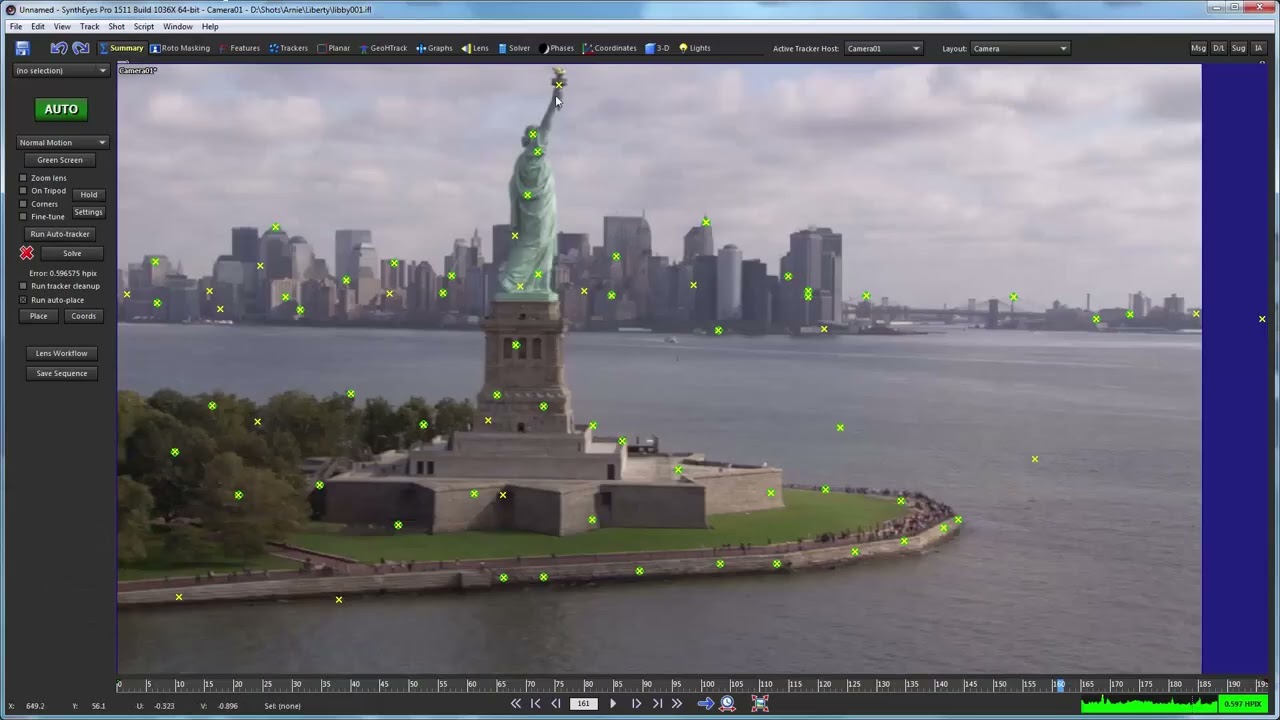
Helping VFX artists since 2003, SynthEyes™ is a standalone application optimized for camera, object, geometry, planar tracking, and much more. Discover real tracking power and performance with complete control over tracking and solving, blazing-fast performance, a huge feature list, and exports to many applications — all at an affordable price!
Introducing the new "SynthEyes Advanced Lens Distortion" plugin for After Effects. Watch overview video.
SynthEyes features an extensive supervised tracking feature set with high-performance automatic tracking, 3D planar tracking, AprilTags, cleanup, and add-tracker tools.
SynthEyes can export the tracked scene to a large number of other packages and formats, supporting formats such as USD, FBX, OBJ, and Alembic.
SynthEyes offers powerful tools to position, align, and size the entire scene in a 3D environment, so you can ensure the world scale and coordinates of your scene match the rest of your workflow.
SynthEyes has extensive tools not only for calculating distortion during solving, but also for lens calibration from lens grids. Rectify Lens Grid for "just fix it" unmodeled lens distortion correction, especially for complex lens types. Tilt detection and correction if grid spacing and camera-to-grid measurements are available. Lens Master Calibration system handles linear, inverse linear, anamorphic lenses, and four fisheye lens variants.
Spectacularly powerful and flexible toolset for 3D tracking multi-level constrained hierarchies of moving parts, directly tracking supplied meshes, or using normal (supervised) trackers.
SynthEyes features integrated stabilization for normal and 360VR shots driven by 3D solves, including creating a "physical" rig for export.
SynthEyes has user-friendly tools to separate elements and exclude them from tracking.
Use ViewShift for complex object removals, combining split takes, generating animated texture maps, and more!
SynthEyes can read and write a variety of mesh and vertex cache formats, supporting most commonly used 3D / compositing applications used in the industry.
Feel the awesome next-generation power and flexibility of typed or spoken natural language control with the Synthia instructible assistant. Automate frequent tasks using Synthia, Sizzle, or Python scripting.
|
Product: Release Number: |
Syntheyes 2024 |
|
Requirements: |
MacOS Catalina (10.15) or later.
Windows 10 or later. Linux: CentOS 7+ or compatible Linux distribution on x86_64. |
|
Hardware: |
Recommended Hardware: Intel or AMD “x64” processor with AVX (“Sandy Bridge” or later or comparable AMD, no Atom-based processors.) Memory: 2 GB RAM minimum. 4+ GB is strongly recommended. 8-32 GB or more typical for pro, 360VR, and film users Graphics Card: 1280x768 or larger display with OpenGL support. High-DPI displays supported (100% or 200% scaling), Windows 10 required for full functionality. Large multi-head configurations require graphics cards with sufficient memory. RED GPU decode assist requires 2+ GB video RAM. Network: Must have an enabled network adapter (wifi or ethernet) Warning: the “Nahimic” audio system (NahimicOSD.dll) has a parasitic video overlay that is problematic to a number of apps including SynthEyes, and may cause a hang or crash when entering the graph editor or perspective view. If so, disable or uninstall it. Quick directions that might work: Click the Windows icon, type “services”, right-click the Services app, click Run as Administrator. Scroll down to Nahimic, right-click and select Properties. Change the Startup type to Disabled. Minimal Requirements: Processor: At least 1-GHz Pentium IV Memory: 2 GB Disk: At least 1 GB Graphics Card: Must support OpenGL Monitor: Minimum resolution 1200×800 pixels |
|
Licensing options: |
Perpetual, or Annual / Monthly Subscription options Node-locked, cross platform license. Upgrade + Support Renewal available. For enterprise floating licenses, contact us. |
The manuals can be found on SynthEyes's Help menu.
On macOS, do not use the Help menu's search box, it is a macOS feature that searches only the macOS help.
This section covers general questions about match-moving: what it is, what you can do with it, overall workflow…
What is Camera Tracking?
"Camera tracking" or "Matchmoving" or "3D Tracking" is the process of analyzing a video clip or film shot to determine where—in 3D—the camera went, what its field of view was, and where parts of the set were. The 3D path of a rigid moving object can be determined as well.
Overall Workflow
Shoot. In SynthEyes, track using the automated system or supervised trackers, solve for the camera and environment information, export to your existing 3D animation or compositing software (Maya, Lightwave, 3ds max, Modo, After Effects...). Using your 3D software, create effects matching the original shot. Render. Composite. Edit.
Why Automated and Supervised Tracking?
If SynthEyes can track and solve automatically, why does it have supervised capabilities ? It's like cruise control on a car: automatic for the boring stuff, manual for heavy traffic. SynthEyes lets you mix and match, even in the same shot.
Can I Match One Still Image?
Yes, if there are a number of parallel lines present (See "Tripod and Lock-off Shot Alignment" in the manual). Or, if you know the exact 3D coordinates of a half-dozen or more visible features.
Can I Use Known Coordinates?
If you have survey data from a set or construction site, you can use those known coordinates to match the entire match-moved scene to that data.
FAQs covering installing and licensing SynthEyes—getting it going to start with.
Installer Fails
If an installer refuses to run, or the OS claims it is corrupted, please download again after turning off any and all "download managers." Try a different browser if necessary.
Turn off auto-save—some network's protocols apparently do not perform the renaming of the previous file properly, ie from foo.sni to foo.sni.bac Turn off auto-save in the Save/Export section of the preferences.
macOS: If the text in the SynthEyes user-interface buttons is missing or garbled, you have removed or altered macOS's system Lucida Grande font, and need to restore it. You must not override the system Lucida Grande font by placing a different one in /Library/Fonts, /Network/Library/Fonts, or ~/Library/Fonts.
Crashes During Startup
*** IMPORTANT *** SynthEyes requires support for the AVX instruction set. If you've never run SynthEyes before on a machine, you have an older machine, and SynthEyes crashes at startup, your machine probably doesn't support AVX. (On Linux, it may mean that you need to install additional subcomponents, see the Linux support area.)
If you've run SynthEyes before successfully, and now it crashes in startup, either SynthEyes crashed previously or your entire machine wasn't shut down properly. You can manually reset the preferences to fix that.
Crash or Hang?
Is it a crash or a hang? SynthEyes might seem frozen, but it could be processing a task that takes time, especially after starting certain operations. Be patient, like when opening a long movie file, which needs indexing for all image frames.
For Windows, use Task Manager to create a dump file for diagnostics (see instructions below). On macOS, select the process, Inspect it, and then Sample.
Windows Note: A problematic audio system called "Nahimic" with a video overlay may cause hangs, especially when entering the graph editor or perspective view. It's found on machines from major manufacturers, including Dell. If you encounter this issue, disable or uninstall Nahimic.
How to Report a Crash or Hang
If you encounter a crash or hang in SynthEyes, follow these steps to help us diagnose the issue:
Recovering your SynthEyes scene (SNI) file
In many SynthEyes-detected crashes, SynthEyes will save your current SNI scene file. When you restart SynthEyes, click File/User Data File. The saved file is crash.sni there; you can check its date. Don't use it to replace any earlier versions of the SNI file you may have made; use it as a next version. If you've been using SynthEyes's auto-versioning features, you should also have a sequence of earlier versions.
If you got an error about running out of memory, check that you have plenty of free disk space on your main system drive. Your operating system likes to think ahead, and make sure it has somewhere to keep SynthEyes if it needs to move the running application to disk temporarily. (Technical explanation: it wants backing store for the virtual memory, even if the physical memory exists.)
Click here for resources if your scene looks good in SynthEyes, but you have trouble exporting to a downstream application, or the match move isn't the same in that application.